
Step 1. Update Your Business Profile
- Your Business Profile information is used for compliance purposes and registration with Phone Carriers to allow you to send/receive sms and phone calls in the system
- Your Business Profile sets standards for your missed calls and more
Where to find
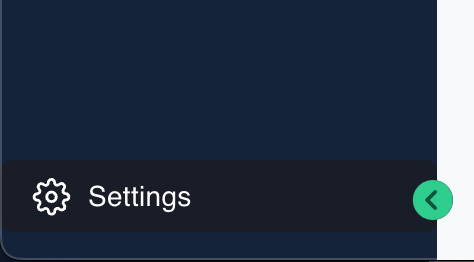
Go to the Settings in the bottom left corner of your screen
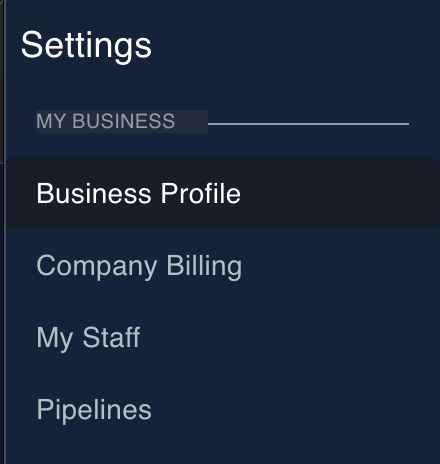
Choose Business Profile
What to update
Update everything inside of the Business Profile settings. Do not skip this. Be sure to click the blue buttons to save your information as you go.
✅ General Information
Upload, change, or remove a logo. Update and fill in all company information, including name, email, phone number, and website.
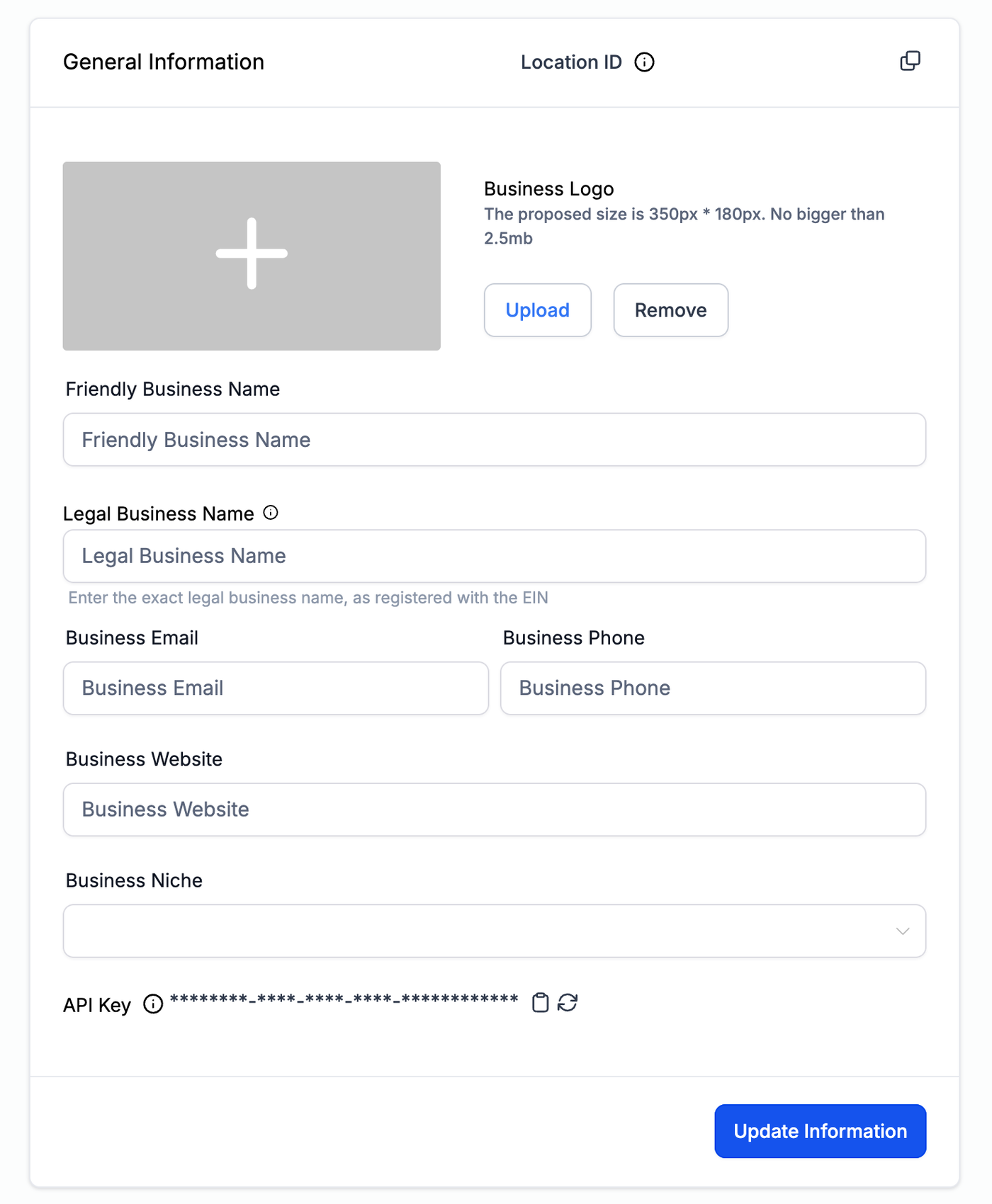
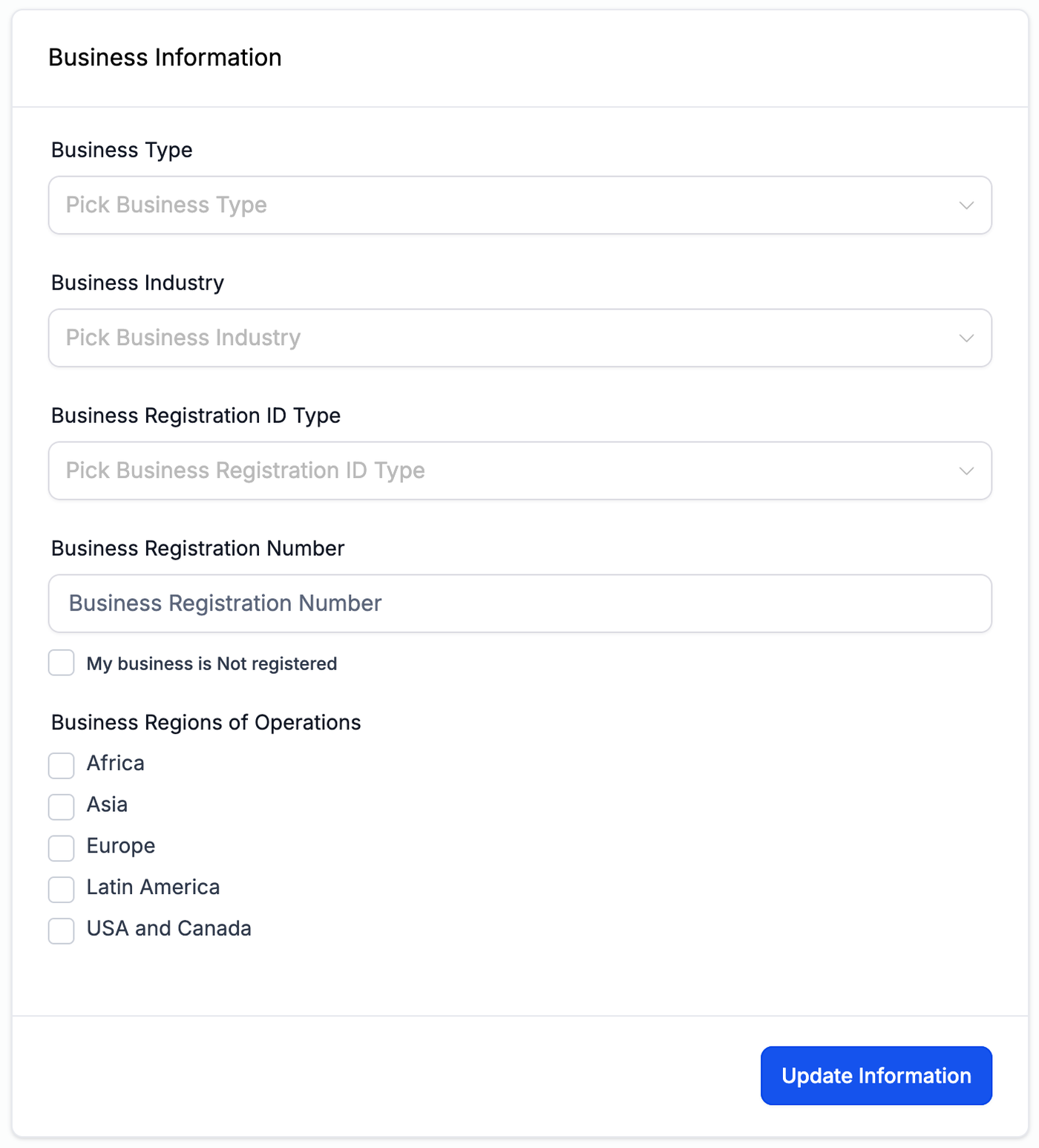
✅ Business Information
This is where you enter your exact legal business name, as it is been registered with the EIN because this data will be used for future compliance registration.
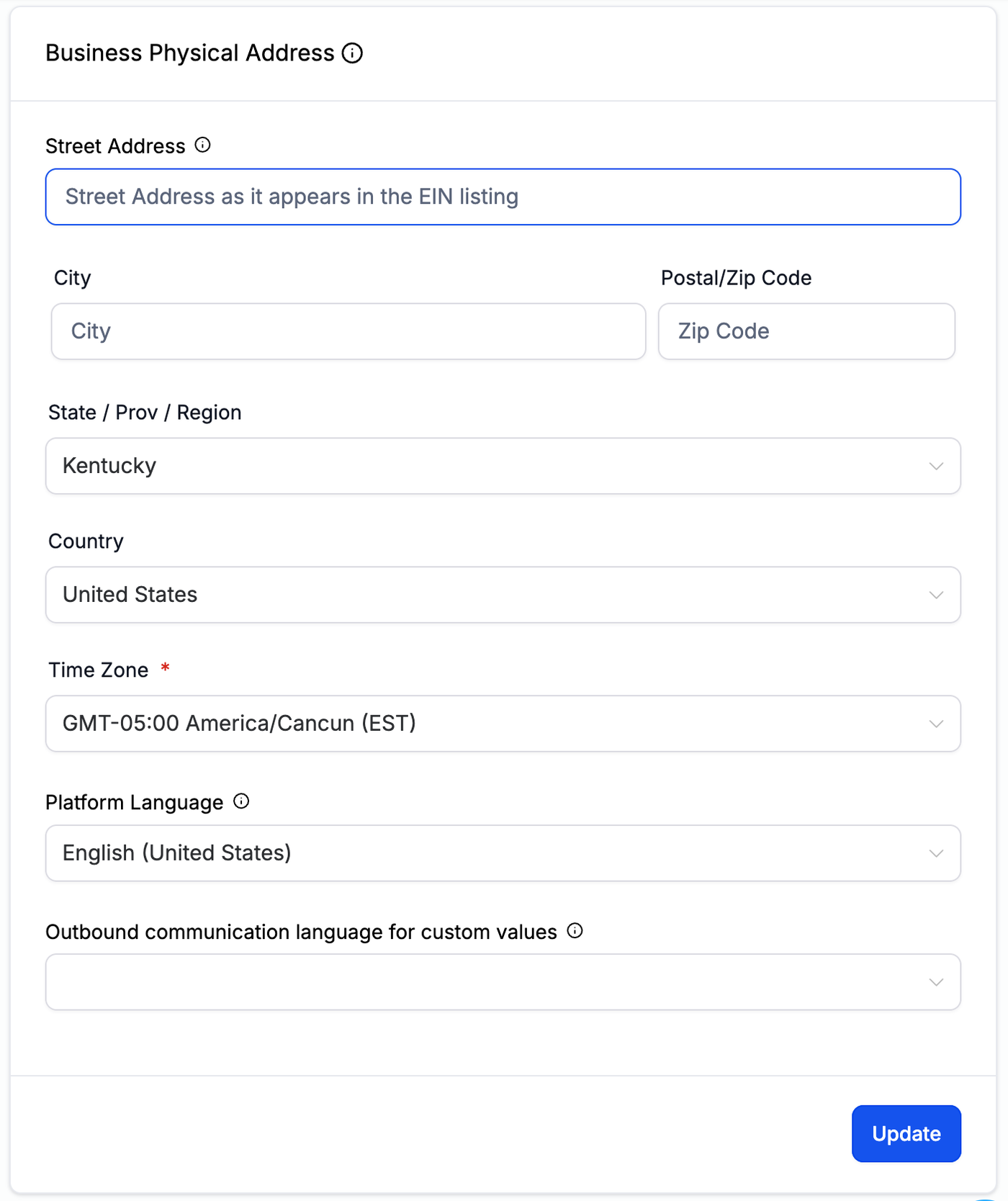
✅ Business Physical Address
Here you can type in the full Walk-in address for your business. You must enter the exact business address as it appears in the EIN listing; your full street, city, postal/zip code, state/Prov/Region, and country.
You are also required to include your time zone. Changing the time zone will impact your triggers, appointment booking, and more. Lastly, select your preferred language, the selected language will be used by the system as default.
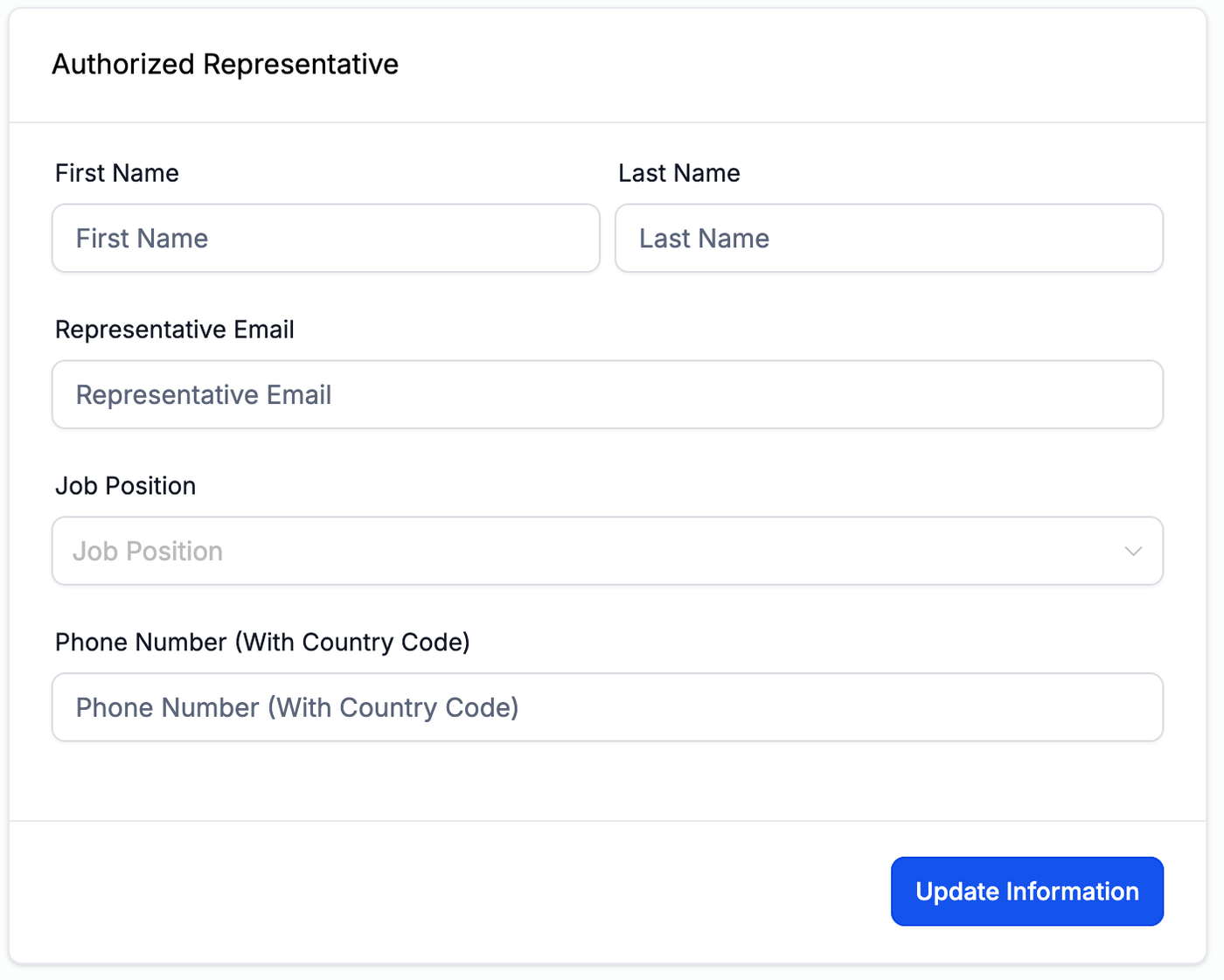
✅ Authorized Representative
If you would like to have an Authorized Representative that will be recognized by your system, type in the person's First & last name, Email, Job position in your company, and he/her phone number with the country code.
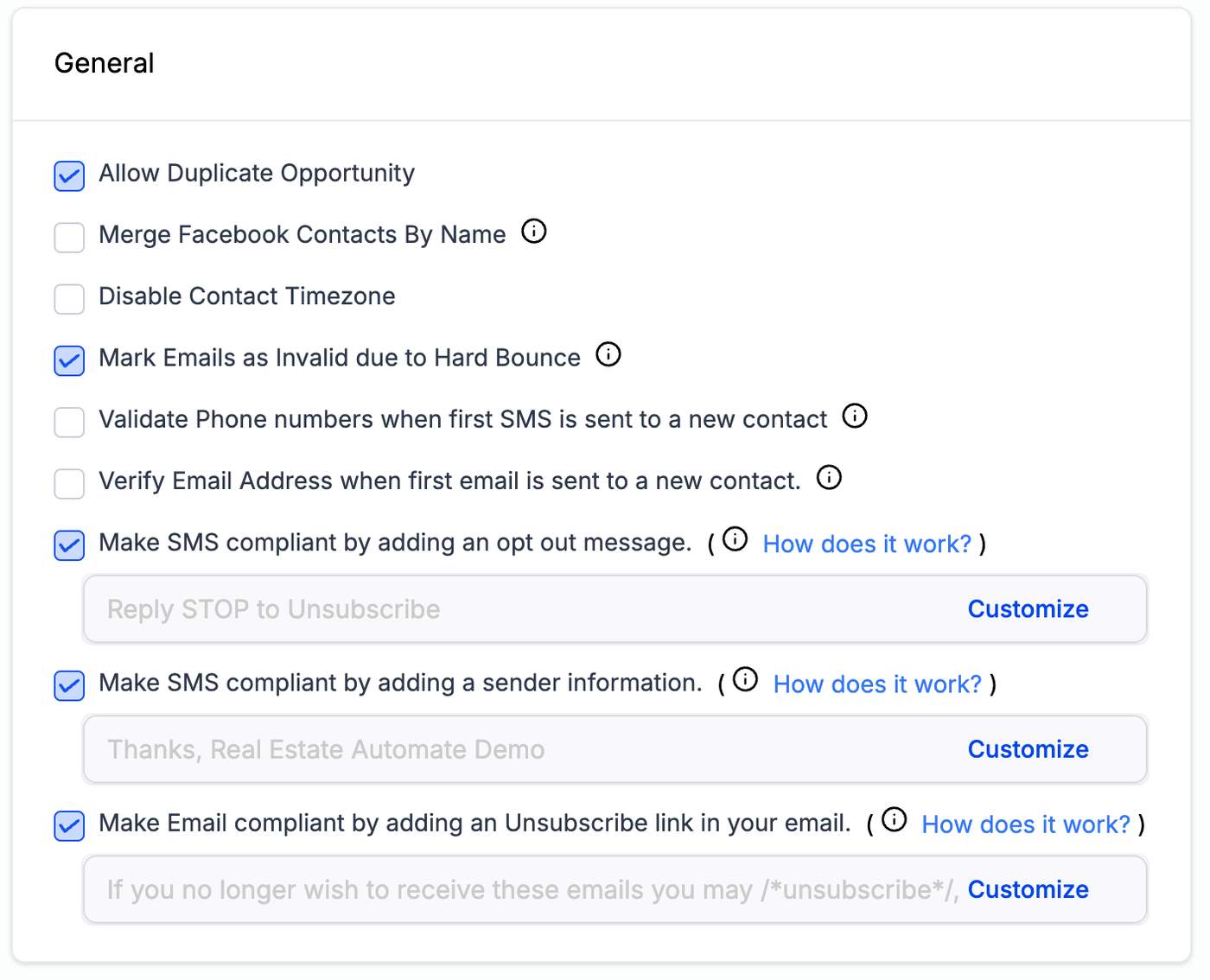
✅ General
You can toggle on and off these settings based on your preference. Note the suggested settings in the screenshot below.
Email and SMS Validation is a great, recommended feature. Hover over the "i" icon to discover the fees associated with validating phone numbers and emails. This will help protect you from overpaying in the future to email or send text messages to non-validated recipients.
You may also customize your compliant opt-out and unsubscribe links as desired.
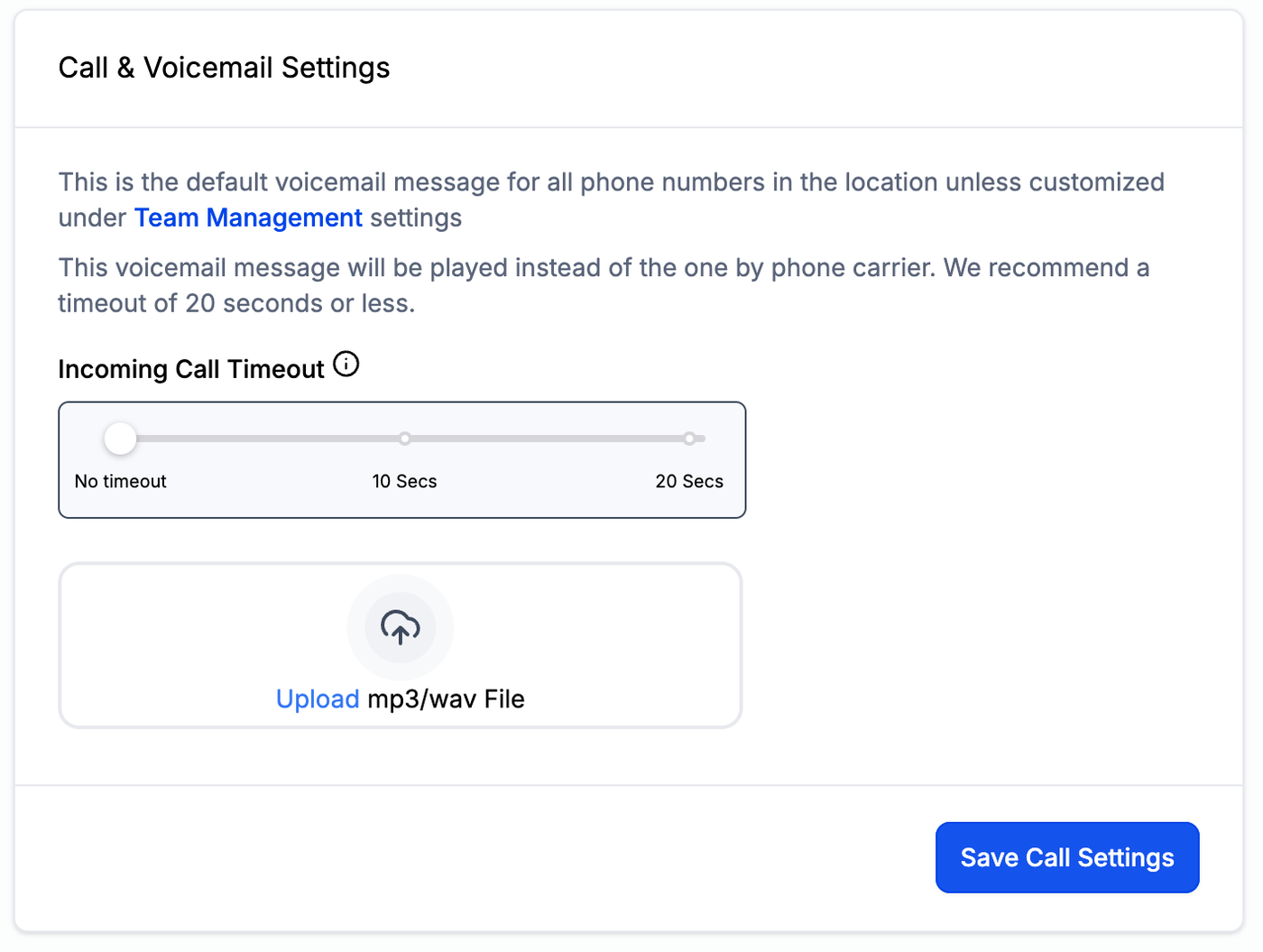
✅ Call & Voicemail Settings
This is the default voicemail message for all Twilio numbers in the location unless customized under the Team Management settings. This voicemail message will be played instead of the one by a phone carrier. The CRM will record a voicemail if the call isn't answered before this duration.
Upload a custom voicemail in mp3 format, and set a timeout number. We recommend a timeout of 20 seconds or less.
✅ Missed Call Text Back
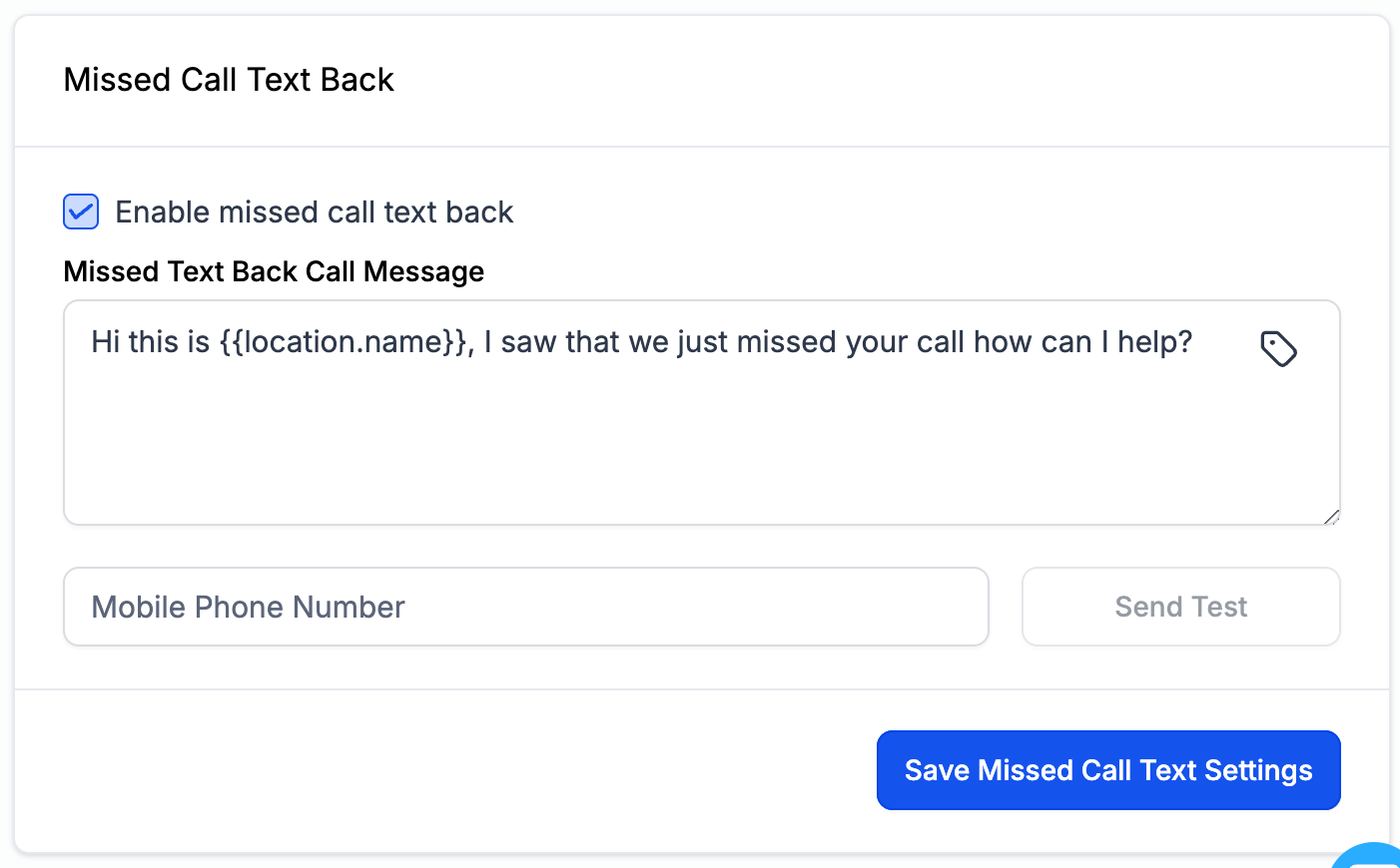
Missed call text back will attempt to automatically send out a text message to any phone number that is registered as a missed call in your system.
If enabled, you can customize the text message being sent and also demo-test it before making it live.
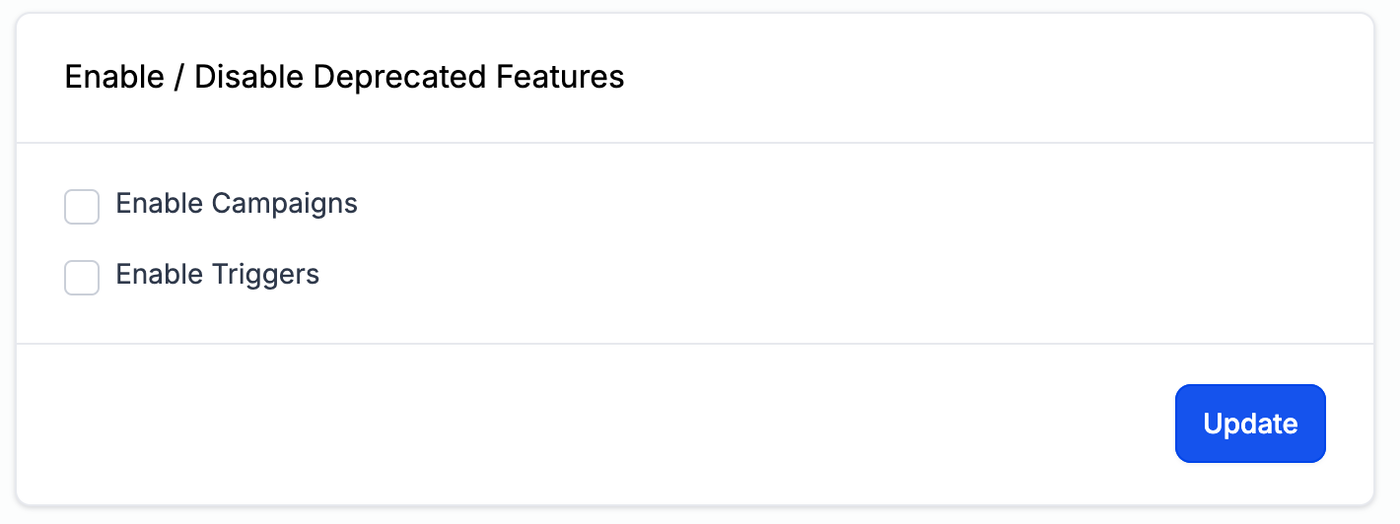
✅ Depreciated Features
It is recommended to leave these unchecked. These are old features that will be phased out of the platform.
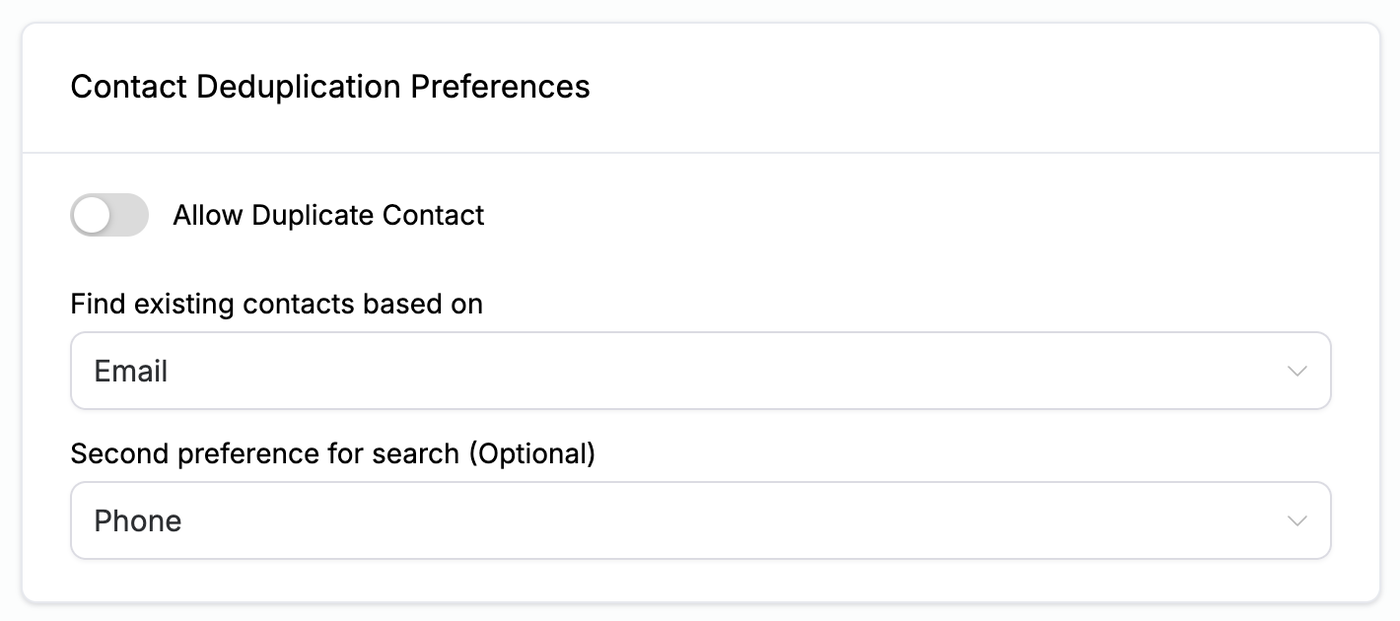
✅ Contact Deduplication Preferences
The default settings are the recommended settings, as shown in the screenshot below.